Transitioning from Angle to Acro Mode: Tiny Whoop Guide
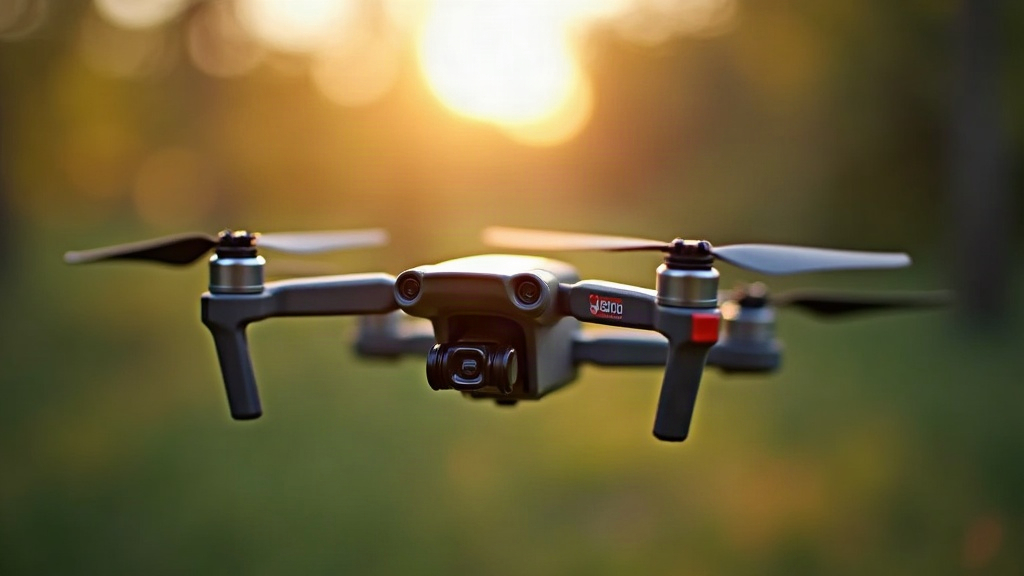
Switching from Angle mode to Acro is probably the biggest skill jump you’ll face in Tiny Whoop flying. It’s also the one that scares people off the most. This guide walks through exactly how to make that jump without wrecking your drone (or your nerves) in the process.
Why Angle Mode Isn’t Enough Forever
Angle mode is great when you’re starting out. Let go of the sticks and the flight controller levels the drone for you, automatically. It’s forgiving, predictable, and honestly perfect for those first few weeks. But there’s a catch: it also caps how far you can tilt the drone, and that limitation shows up fast.
- Flips, rolls, dives? Not happening.
- Tight, fast maneuvers through gaps feel mushy and slow to respond.
- You hit an invisible ceiling. No matter how good your thumbs are, Angle mode won’t let you fly past a certain point.
Acro mode (people also call it rate mode) strips away that self-leveling entirely. Whatever angle you put the drone at, it stays there until you correct it yourself. That’s what gives you real control over pitch, roll, and yaw rotation speed, and it’s the only way to pull off freestyle tricks, squeeze through tight gaps, or fly those smooth racing lines pilots post online.
Step 1: Confirm You’re Actually Ready
Before you flip that switch, check yourself against this list:
- Can you hover in Angle mode for 2+ minutes without drifting around the room?
- Can you fly a basic figure-8 without thinking too hard about it?
- Do you land on something small (a coaster works fine) on most attempts, not just once in a while?
If all three feel easy, go ahead, you’re ready. If any of them still feel shaky, stay in Angle mode a bit longer. Nobody’s timing you.
Step 2: Set Up Acro Mode in Betaflight
- Open Betaflight Configurator and connect your Tiny Whoop.
- Head to the Modes tab.
- Locate your current Angle mode switch (usually sitting on AUX1).
- Keep Angle mode mapped to one switch position, but don’t let it stay active by default.
- Got a 3-position switch on your radio? Set it up like this:
- Position 1: Angle mode
- Position 2: Horizon mode (a nice optional middle step)
- Position 3: Acro mode (nothing ticked means Acro runs by default)
Horizon mode is worth mentioning here. It self-levels when the stick sits centered but lets you throw full flips once you push to the edges. A lot of pilots skip it entirely, but if you’re the nervous type, it’s a solid bridge between the two worlds.
Step 3: Lower Your Rates First
Fly Acro on default rates and it’ll feel like holding a live wire. Twitchy, jumpy, way too sensitive. So before that first flight:
- Open the Rates tab in Betaflight.
- Drop Roll/Pitch rates down to around 400-500 (defaults often sit at 670 or higher).
- Pull Yaw rate down a notch too.
This basically “detunes” the drone so a small stick nudge doesn’t send you into a wild spin. It sounds like you’re making things weaker, but really you’re just giving yourself room to learn without fighting the controls.
Step 4: Practice on a Simulator First
Seriously, don’t skip this. Grab a free or cheap simulator (Velocidrone, Liftoff, DRL Simulator all work fine) and turn Acro mode on in there:
- Practice plain hovering with no auto-leveling net underneath you.
- Train yourself to catch a drift before it turns into a crash.
- Put in at least 3-5 hours before you touch your real drone.
Here’s the thing: simulator hours carry over to real flying almost one-to-one. And every hour you spend in sim is an hour you’re not replacing a snapped prop or a cracked frame.
Step 5: First Real Acro Flights — Indoors, Low and Slow
- Pick a small, safe indoor spot. An empty room, maybe one with pillows stacked around, works great.
- Keep it low. A crash from a foot off the ground is nothing. A crash from 10 feet can snap an arm or a prop.
- For your first 5-10 flights, just hover. That’s the whole goal.
- Ignore the urge to flip right away. It’ll be there later.
Step 6: Gradually Increase Rates and Difficulty
Once hovering starts feeling natural, move through this sequence:
- Slow forward, backward, and side movements.
- Gentle yaw turns, nothing aggressive yet.
- Controlled altitude changes, nice and slow.
- Only now try your first flip or roll: full stick throw, then release immediately.
Common Mistakes to Avoid
- Cranking rates up too fast. This leads straight to over-correction and, soon after, a crash.
- Skipping the simulator. Props cost money. Simulator time costs nothing.
- Flying outside too soon. Even light wind makes Acro noticeably harder to manage.
- Panic-switching back to Angle mid-flight. Fine as an occasional safety net, but lean on it too much and you’ll never actually build Acro instincts.
How Long Does It Take?
Most pilots get comfortable hovering in Acro within 1-2 weeks, assuming 15-20 minutes of practice a day. Confident freestyle flying usually takes another 1-3 months on top of that. Everyone moves at their own pace here, some people click with it in days, others take longer, but showing up consistently beats cramming long sessions once in a while.
Conclusion
Making the jump from Angle to Acro turns your Tiny Whoop from a toy into something closer to a real freestyle machine. It takes patience, some rate tuning, and a good chunk of simulator time before it clicks, but once it does, you get full creative control over how you fly. Go slow, keep a spare set of props on hand, and let yourself enjoy the bumpy part of the learning curve. It doesn’t last forever.